
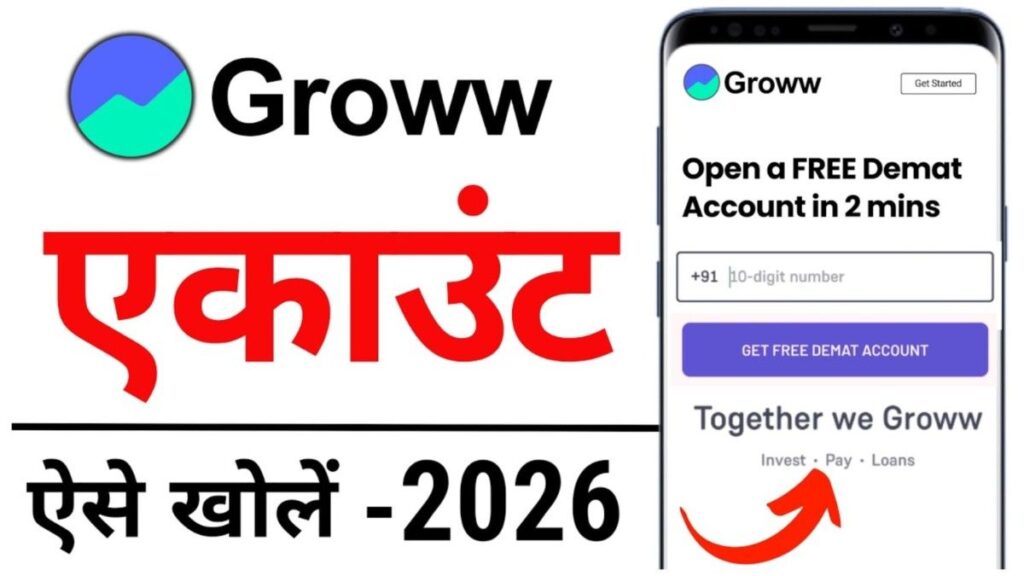
Grow App Demat Account:If you also want to know how to open a Demat account in the Grow app, this complete step-by-step latest process is for you. Follow these steps to open your Demat account and start using Grow for investments.
The Best Thing About the Grow App
Grow started as a mutual fund platform. After mutual fund investment, they diversified their business and now you can open a Demat account and a trading account in the same app. On one platform, you get both mutual fund and stock market investment options.
There are many discount brokers in the market, but Grow’s user interface is very simple, which makes it easy even for beginners to invest.
Grow App Demat Account Opening Full Process
First Step: Install the Grow App
First, install the Grow application from Google Play Store or App Store. After installing, open the app where you will get the option to enter your email ID.
Email and Mobile Number Verification
In iPhone, you get three options—Continue with Google and Use Another Email.
In Android, you will get two options. If you want to continue with your Gmail ID, select the first option, otherwise enter your email manually.
Next, enter your mobile number and click on Send OTP. After OTP verification, you need to set up the Grow PIN. Create a four-digit PIN and confirm it.
Auto-Fetching of PAN and Bank Details
PAN and bank details can be auto-fetched from your Google account. Your PAN details will be shown for confirmation. If the PAN is incorrect, click on No Edit PAN.
Similarly, bank details may also be auto-fetched. If you want to change the bank account, choose No Change Bank Account.
Entering Occupation and Parents’ Name
In the next step, select your occupation—Student, Professional, Business, Retired, Housewife, etc. Then enter your parents’ name and proceed. After this, select your annual income.

Completing the Account Setup
On the Grow Home Page, you will see Attention Required. Click on Complete Setup.
You will need to confirm your marital status, share market experience, and declaration.
By default, Cash and Debt will be selected. You can also select Equity, Future & Option, and Commodities if you want.
Aadhaar OTP for KYC Verification
Now Aadhaar OTP verification will appear. Tick the checkbox and enter the OTP.
You need to confirm your Aadhaar details like name, DOB, gender, and address.
Next, you will see Take a Selfie for KYC. Turn on the camera and capture your selfie. Then click on Proceed to Signature and upload your signature.
Option to Add Nominee
You can add up to three nominees. Enter the nominee’s name, relationship, email ID, mobile number, DOB, and ID proof.
If you don’t want to do it right now, choose Skip for Now.
Final Signature Through Aadhaar e-Sign
Click on Proceed to Aadhaar eSign, enter your 12-digit Aadhaar number, and verify using OTP. After successful e-sign, you will see You Are All Set.
F&O Activation (Optional)
If you want to activate Future & Option, choose Continue to F&O Onboarding.
Here, bank OTP and eligibility will be checked. You must have transactions worth at least ₹15,000+ in the last six months.
Final Account Activation
Future & Option gets activated within 24 hours.
On the Grow Home Page, you will see five steps — Document Verification, Demat Account Creation, Trading Account Setup, KYC Verification, and Account Activation.
The entire process completes within 24 hours, after which you can buy any stock through the Grow platform.
How To Apply For Grow Apps Opening – Click Here (New)

नमस्कार दोस्तों, मेरा नाम Yash Patel है। मैं VacancyXYZ का Founder & Content Writer हूँ। पिछले 5 वर्षों से सरकारी नौकरी, भर्ती, परीक्षा, एडमिट कार्ड, रिजल्ट और शिक्षा से जुड़ी जानकारी सरल हिंदी में प्रकाशित कर रहा हूँ।
मेरा उद्देश्य उम्मीदवारों तक भर्ती और परीक्षा से संबंधित सभी महत्वपूर्ण जानकारी को आसान और स्पष्ट तरीके से पहुंचाना है। भर्ती से जुड़ी जानकारी प्रकाशित करते समय संबंधित विभाग की Official Notification और Website को प्राथमिक स्रोत माना जाता है। किसी Notification में बदलाव होने पर संबंधित जानकारी को अपडेट किया जाता है।
VacancyXYZ किसी सरकारी विभाग की official website नहीं है। उम्मीदवारों को आवेदन या महत्वपूर्ण निर्णय लेने से पहले संबंधित विभाग की official Notification जरूर पढ़नी चाहिए।
Yash Patel द्वारा प्रकाशित सभी लेख और भर्ती अपडेट देखें।
📚 My Published Articles